Latest version 0.3c
Released 1 year ago on 14th Jan, 2025
Number parameters are no longer parsed as text by the script and producing unexpected event lengths.

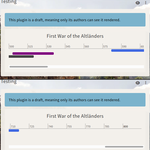
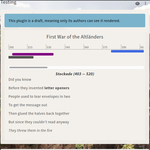
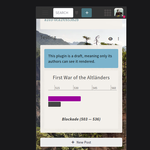
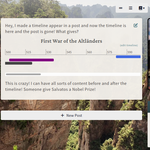
Do you ever wish you could have a timeline inside another entry to convey a sequence of events visually? Now you can! By creating an article set to show the entry’s properties, you can display a custom timeline in the Overview page. From there, the template can even move the timeline to another specified part of your entry’s description or articles! You can also set a dashboard entry preview widget to show properties in order to add one or more timelines to your home page.
This plugin references two types of properties: one for the timeline’s overall settings, and any number of properties defining each event. Applying the property kit to an entry will create one of each type with sample values to guide you. Both of them contain a series of parameter and values separated like so: parameter1=value|parameter2=value. Please do not add spaces or change the capitalization of these settings.
start=0|end=200|dividers=10|title=Sample Timeline
This property must not be renamed. It accepts the following parameters:
row=1|start=3|end=20|color=royalblue|name=Entry 1
A description is optional.

Skip two lines to create paragraphs.
This property defines a single event on the timeline, and you can create as many as you need. Its name must start with "Timeline Entry", but you can add more words or numbers to keep track of them more easily. It accepts the following parameters:
Next, create a new article on the entry, and in the Article layout dropdown, select Properties. The article will display this sheet instead of a block of text. Give your article a title, check that all settings are as desired, and save. If you’re happy with the timeline occupying its own article, you’re all set!
If you prefer, you can easily move the timeline to any other article, or to the main description. Simply edit the description or article where you want it to appear, switch to Code View in the editor’s toolbar, and insert the code below wherever you want the timeline to reside among the rest of your content:
<div id="timeline-in-post-target"></div>
When the template finds this code on the page, it moves the timeline to it and hides the original article from the page to keep it clean. When the page is viewed by a campaign admin, they will see a small edit link below the timeline to edit the article, should they need to change its permissions or other settings or delete it altogether.
The out-of-the-box appearance of the timeline is kept deliberately simple to integrate easily with all official themes. Each element has a specific class you can easily target with campaign CSS:
You can easily turn the timeline into a percentage-base progress tracker by setting the timeline to a length of 100 and adding the following to your campaign CSS to show the years in the ruler as percentages:
.timeline-in-post-reference a::before,
.timeline-in-post-reference a:last-child::after{
    content: counter(years)"%";
}
Want to show appreciation for my plugins or request one-on-one CSS help? I accept tips on Ko-fi (no account needed): 
Released 1 year ago on 14th Jan, 2025